Install guide
Install Chip in Claude
Chip is your course’s Clubhaus assistant inside Claude. This guide walks you through connecting it — about 5 minutes, no technical experience needed. You’ll need an active Clubhaus account and either Claude Desktop or access to claude.ai.
1. Get your install URL
You’ll paste one URL into Claude. That’s it.
https://chip.clubhaus.ai/mcpAll Clubhaus courses use the same URL — Chip identifies your course automatically when you sign in.
2. Install in Claude Desktop
If you have the Claude Desktop app installed on your computer.
Open Claude Desktop.
Open Settings → Connectors → Add Custom Connector.
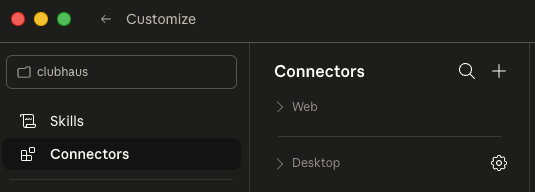
Settings → Connectors Paste the install URL: https://chip.clubhaus.ai/mcp.
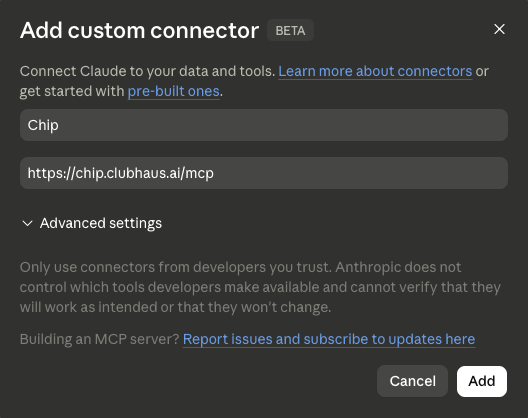
Add custom connector dialog Click Add. A browser window opens.
Sign in with your Clubhaus credentials.
Screenshot · Clubhaus sign-in pageClubhaus sign-in page Approve the access request.
Screenshot · Authorize Chip promptAuthorize Chip prompt The window closes; Chip is now installed. Start a new chat and ask Chip a question.
3. Install in claude.ai
If you use Claude in your web browser instead of the desktop app.
Go to claude.ai and sign in.
Open Settings → Connectors → Add Custom Connector.
Settings → Connectors Paste the install URL: https://chip.clubhaus.ai/mcp.
Add custom connector dialog Click Add. A new tab opens.
Sign in with your Clubhaus credentials.
Approve the access request.
The tab closes; Chip is connected. Open a new chat and ask Chip a question.
4. Troubleshooting
Most install hiccups fall into one of these buckets.
5. What Chip can do
Once Chip is installed, it can answer questions like:
Today's tee sheet
See who’s teeing off, when, and on which course in real time.
Search golfers
Look up members and guests by name, email, or member number.
List orders
Pull recent F&B and pro-shop orders without leaving the chat.
Course info
Hours, cart-path rules, dress code, weather holds — just ask.